DOWNLOAD
New WebPlayer IPTV Editor V2
1 week ago
18 views
Dec 27, 2025
at
10:10 PM
Hello everyone,
I’m pleased to introduce a brand‑new IPTV WebPlayer Editor, now with enhanced customization and localization capabilities. It ships in Brazilian Portuguese by default but can be translated into any language you choose. Every aspect—from colors to core settings—is fully editable. Follow these steps to deploy it on your own subdomain:
Prepare a dedicated subdomain (for example, webplayer.yourdomain.com). The player must be installed at the root of that subdomain; do not place it in a subfolder such as yourdomain.com/webplayer.
Upload the entire WebPlayer package to the document root of your new subdomain and extract all files there so that config.php, config.js, config.css, the img folder and sql_table.sql are directly accessible at that root.
Open config.css and adjust the predefined color variables (such as --primary-color and --accent-color) to match your brand’s palette. Save your changes.
Open config.js and set your DNS endpoint, TMDB API key and desired player name by replacing the placeholder values. Save the file.
Create a new MySQL or MariaDB database (for example, iptv_webplayer), then import the provided sql_table.sql into it. Next, open config.php and enter your database host, database name, username and password. Save and close.
In the img folder, replace the default logo files with your own images, keeping the same filenames. Upload a favicon.ico file into the project root alongside index.html.
Clear your browser cache and visit your subdomain URL to confirm that colors, logos, DNS integration, TMDB data and database‑driven content load correctly.
Finally, ensure that your subdomain does not force HTTPS—disable any redirects or HSTS rules so that both HTTP and HTTPS are permitted.
That’s all you need for a fully functional, infinitely customizable IPTV WebPlayer Editor. Enjoy!
This is my first post; if I made any mistake in any explanation or rule, I apologize.
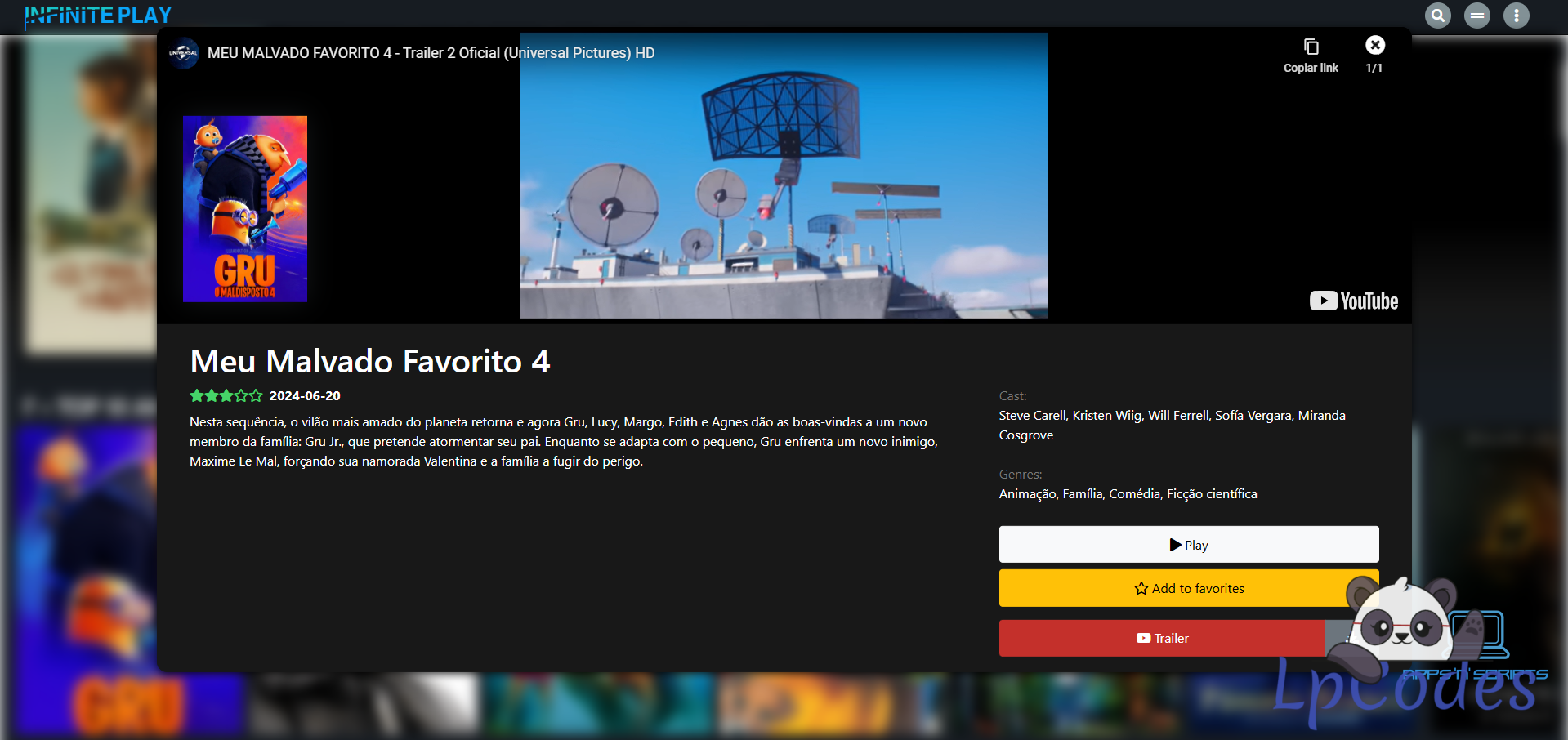


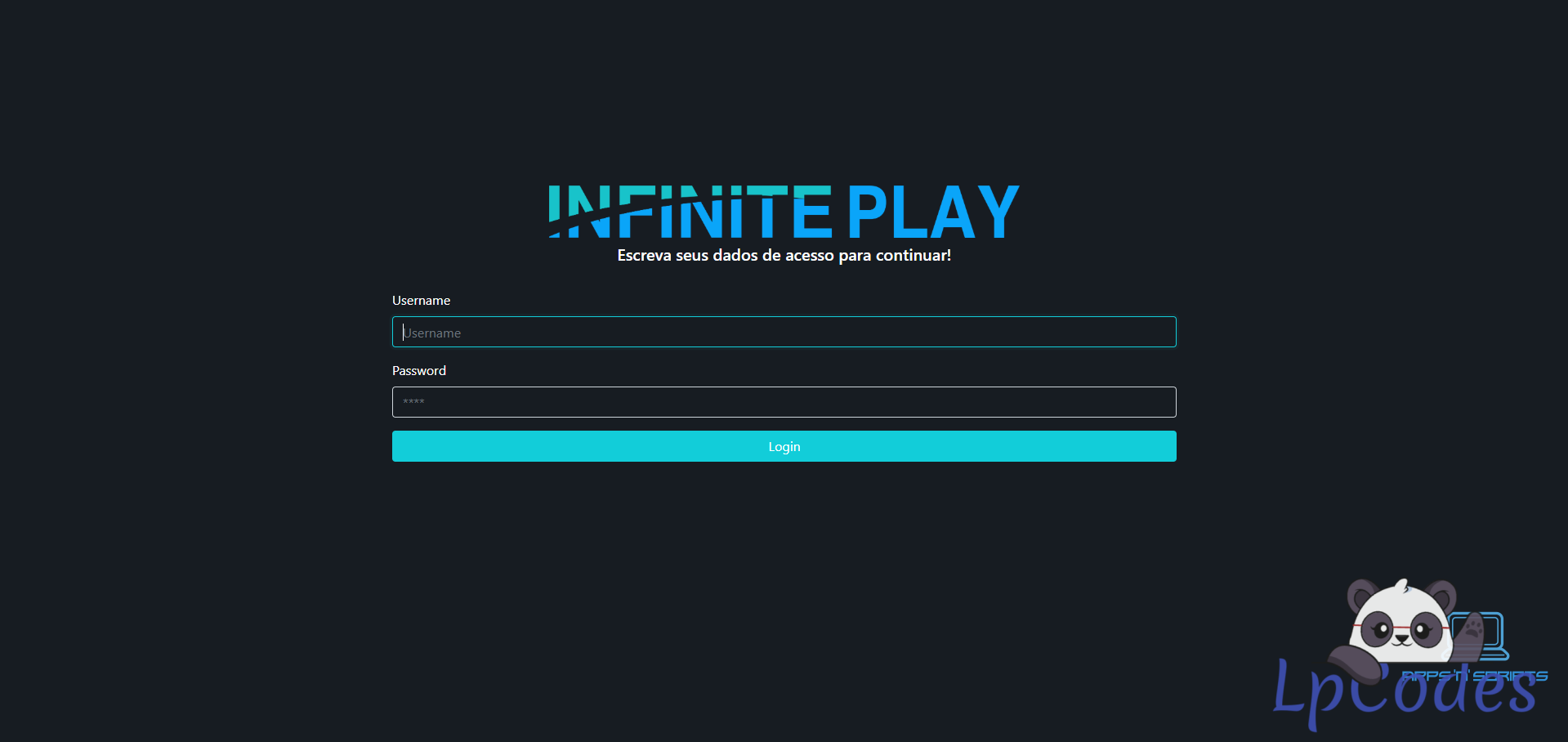
I’m pleased to introduce a brand‑new IPTV WebPlayer Editor, now with enhanced customization and localization capabilities. It ships in Brazilian Portuguese by default but can be translated into any language you choose. Every aspect—from colors to core settings—is fully editable. Follow these steps to deploy it on your own subdomain:
Prepare a dedicated subdomain (for example, webplayer.yourdomain.com). The player must be installed at the root of that subdomain; do not place it in a subfolder such as yourdomain.com/webplayer.
Upload the entire WebPlayer package to the document root of your new subdomain and extract all files there so that config.php, config.js, config.css, the img folder and sql_table.sql are directly accessible at that root.
Open config.css and adjust the predefined color variables (such as --primary-color and --accent-color) to match your brand’s palette. Save your changes.
Open config.js and set your DNS endpoint, TMDB API key and desired player name by replacing the placeholder values. Save the file.
Create a new MySQL or MariaDB database (for example, iptv_webplayer), then import the provided sql_table.sql into it. Next, open config.php and enter your database host, database name, username and password. Save and close.
In the img folder, replace the default logo files with your own images, keeping the same filenames. Upload a favicon.ico file into the project root alongside index.html.
Clear your browser cache and visit your subdomain URL to confirm that colors, logos, DNS integration, TMDB data and database‑driven content load correctly.
Finally, ensure that your subdomain does not force HTTPS—disable any redirects or HSTS rules so that both HTTP and HTTPS are permitted.
That’s all you need for a fully functional, infinitely customizable IPTV WebPlayer Editor. Enjoy!
This is my first post; if I made any mistake in any explanation or rule, I apologize.
Similar Threads
1 month ago
292
1 month ago
324

1 month ago
387

1 month ago
176
1 month ago
288